
A Sign-In Approval at 3 A.M.: How MFA Fatigue Attacks Work
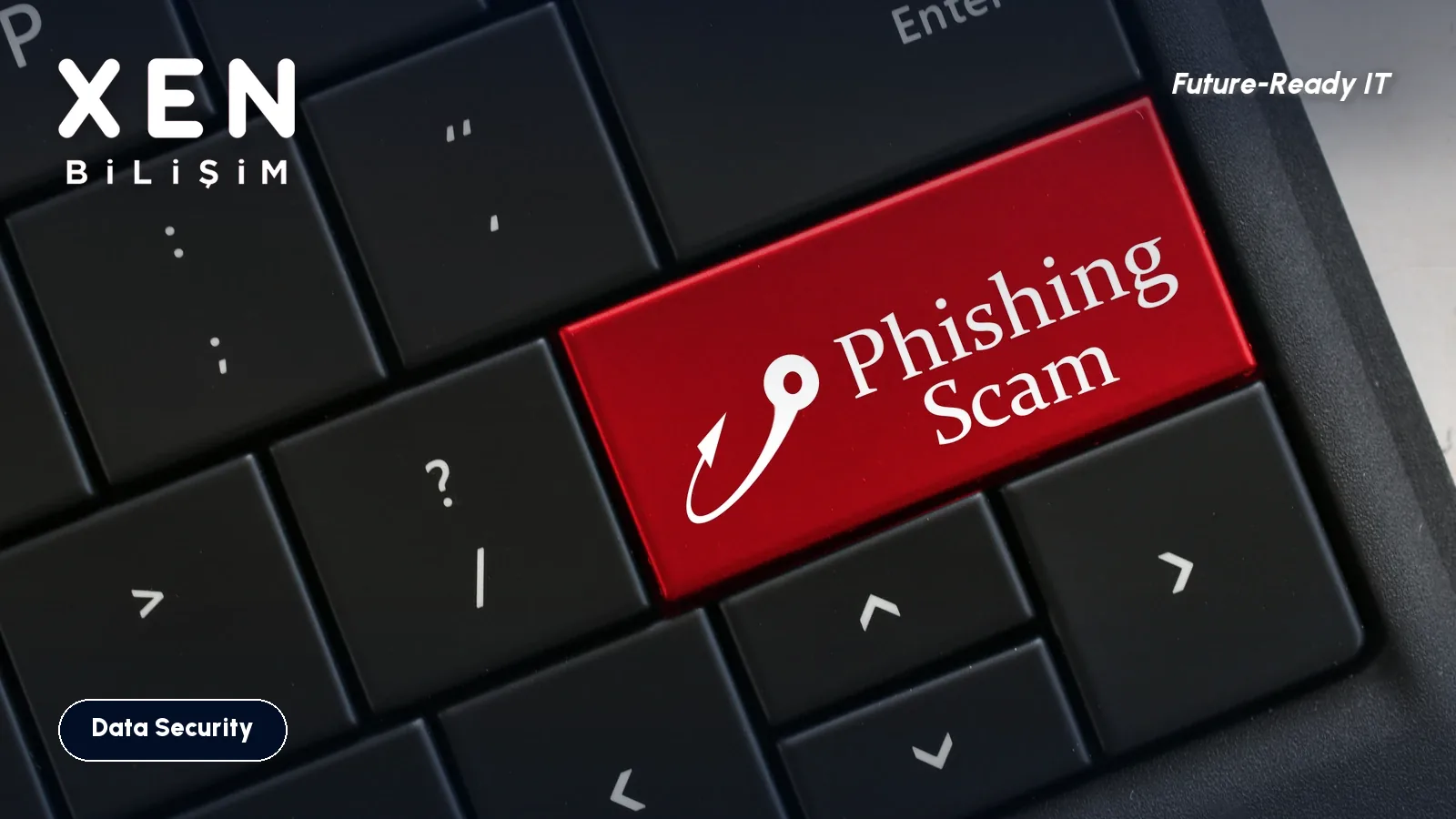
It’s three in the morning and the phone buzzes. The screen says “Sign-in request: Approve / Deny.” You’re asleep, so it gets ignored. Five minutes later it comes again. Then again. By the twentieth prompt, someone half-awake may tap “Approve” just to make the buzzing stop.
That’s exactly what the attacker is counting on. It’s called MFA fatigue, or push bombing: someone who already knows the password gets past the second step by wearing the user down.
How the attack works
First the attacker needs a password. It usually comes from a fake sign-in page, from a password reused on another site that was breached, or from malware on the user’s computer. With the password in hand, the attacker tries to sign in, and the system sends an approval prompt to the user’s phone. What’s left is to repeat the sign-in over and over.
Sometimes they don’t stop there. In the 2022 Uber incident, according to published analyses, the attacker used a contractor’s stolen credentials and sent approval requests for over an hour. When that didn’t work, they messaged the contractor on WhatsApp pretending to be Uber’s IT team and said the requests would stop only if one was approved. The contractor approved. Sources differ on some details, but the two-step pattern (flood the phone, then pose as IT) shows up in all of them.
Notice that there’s no technical vulnerability here. The system works as designed. The weak point is a tired human.
Which verification methods are exposed?
| Method | Resistant to MFA fatigue? | Note |
|---|---|---|
| Plain “Approve / Deny” push | Weak | One tap approves, easy to do without thinking |
| Push with number matching | Much better | The user must enter the number shown on the sign-in screen |
| 6-digit app code (TOTP) | Good | No prompts to spam, but a code can be typed into a fake page |
| SMS code | Medium | SIM swapping and fake-page risk |
| Passkey / FIDO2 key | Best | Doesn’t work on a fake site, and there’s no prompt to spam |
Number matching is a simple idea: the sign-in screen shows a two-digit number, and the user can’t approve without typing it into the phone app. Someone who isn’t at the sign-in screen can’t know the number. According to Microsoft’s documentation, number matching is now enabled for all push notifications in Microsoft Authenticator, and users can’t turn it off. So if you use Microsoft 365, the plain “Approve” button in Authenticator is already gone. An employee on an outdated version of the app can’t sign in and has to update it.
If you use another verification product (Duo, Okta, Google Authenticator and the like), check by hand whether the same feature is on. Don’t assume it’s the default.
What to do in your company
1. Remove the plain approve button. Require number matching or TOTP. For executives and the finance team, move to passkeys or hardware keys if you can.
2. Turn on “Report suspicious activity.” In Microsoft Entra this setting lets a user report a prompt they didn’t start. According to the documentation, a user who reports is marked as high user risk, and the event shows up in sign-in logs as “MFA denied.” When you choose “Microsoft managed,” the setting stays off, so you need to set it to Enabled yourself. Also note that users who sign in passwordless aren’t flagged as high risk.
3. Read the logs. If a user shows a string of denied verification requests around midnight, that account’s password has leaked. Reset the password and revoke sessions right away. A denied request may be the only trace of a leak nobody noticed.
4. Stop password reuse. The attack doesn’t start without a password. A password manager and breach monitoring cut the first link in the chain. We covered corporate password managers in a separate post.
What to tell employees
Three sentences are enough, and they fit on a card:
- If you didn’t start a sign-in, never approve the prompt. Even a single unexpected request is suspicious.
- Anyone who calls, texts on WhatsApp or emails saying “I’m from IT, approve the prompt” isn’t from IT. A real IT team doesn’t ask you to approve anything.
- If a prompt arrives, deny it and tell IT right away. Telling matters as much as not approving, because you may be the only one who knows the password was stolen.
“Don’t approve” isn’t enough on its own. “Report it” has to be part of the message. The damage usually grows not because someone tapped the wrong button, but because nobody said anything.
FAQ
If my password is strong, can this still reach me?
A strong password doesn’t prevent a leak. The same password may have been exposed on another site, or malware may have captured your keystrokes. What matters is that someone who knows the password gets stopped at the second step.
Does moving to passkeys end this problem?
Largely, yes. A passkey needs local verification on the user’s own device (fingerprint, face or PIN) and doesn’t work on a fake page. We wrote a separate post on the passkey transition. If the move will take time, number matching is the stopgap.
I denied a suspicious prompt. Is that enough?
Denying stops the request, but it doesn’t change the fact that an attacker holds the password. Reset it and check the account’s recent sign-ins. Your IT team or provider should do this.
If you’d like to review and tighten your users’ verification methods, get in touch.
Related Posts

Employee Loses a Phone: What Happens to Company Email? First 30 Minutes
What you do in the first half hour after a phone goes missing decides the outcome: kill email sessions, move the second sign-in factor to a new device, and wipe company data only. Here is the order, plus what to set up beforehand.
Read more: Employee Loses a Phone: What Happens to Company Email? First 30 Minutes
Is RDP Open to the Internet at Your Office? A Five-Minute Check
A port forwarding rule for Remote Desktop on 3389 is one of the best-known ways ransomware gets in. How to see your office from the outside, what to do if the port is open, and what to put in its place.
Read more: Is RDP Open to the Internet at Your Office? A Five-Minute Check
Should Employees Have Local Admin Rights? A Plan to Remove Them
When every user is a local administrator, ransomware has an easy job. How to find who really needs elevated rights and finish the switch in six weeks.
Read more: Should Employees Have Local Admin Rights? A Plan to Remove Them