
Is a Copy on an External Hard Drive Really a Backup? Five Questions
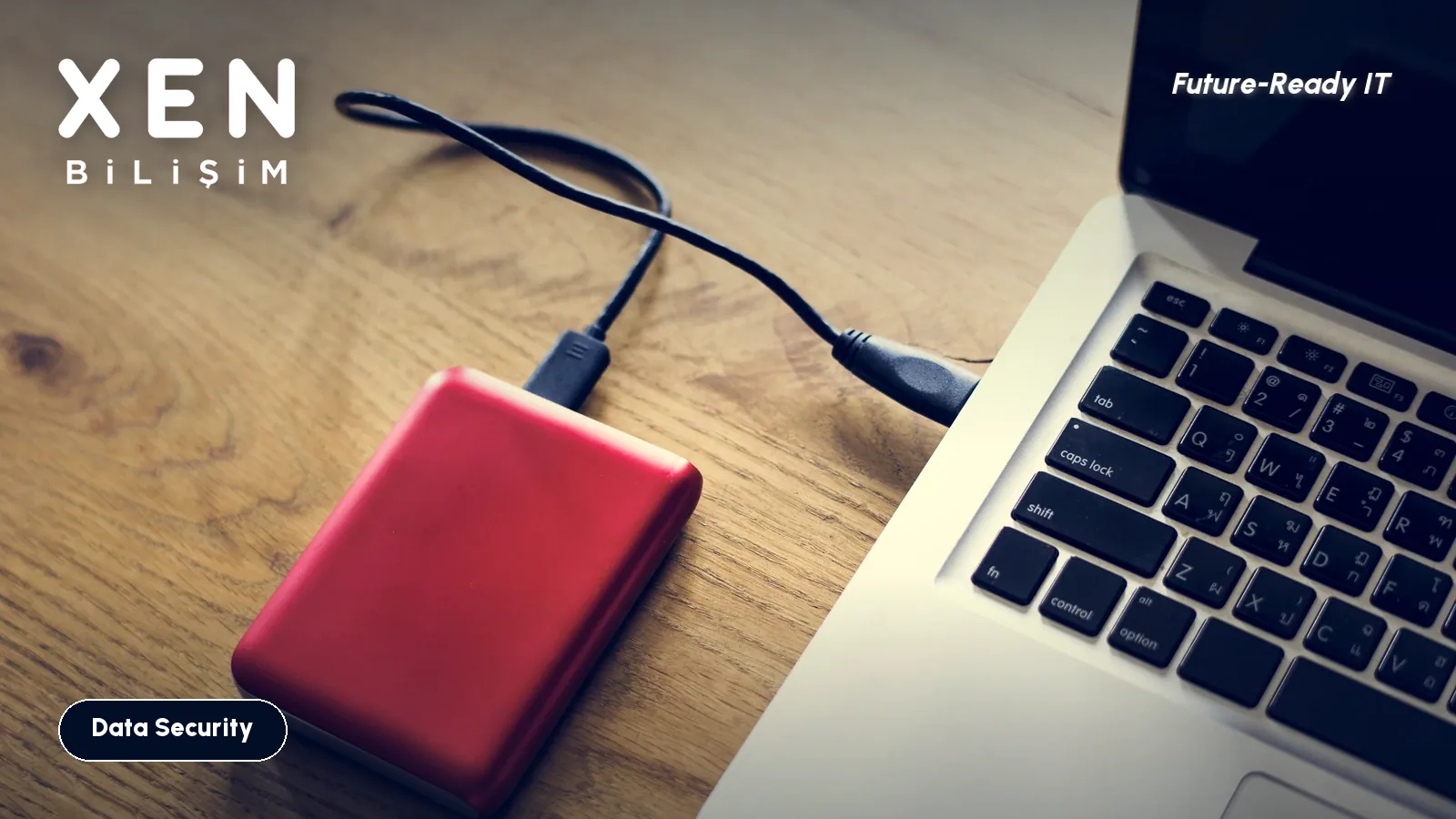
Every company has a “the drive”. Usually it is the accountant, the executive assistant or whoever in the office is good with computers who copies files on Friday evening and puts the disk in a drawer. Nobody calls it backup, yet when someone asks “do we have a backup?”, that drawer is what comes to mind.
It beats nothing. But to count as a backup it has to meet a few conditions, and in most offices it does not. Ask yourself the five questions below and see how many you can answer “yes” to without hesitating.
1. Is the drive plugged in when the trouble starts?
When ransomware runs on a PC, it encrypts every drive that is attached. A USB drive looks like part of the computer. If it stays connected all day, your backup gets encrypted the same minute as the originals.
Plugging it in on Friday and removing it afterwards is better. Still, the exposure window is longer than people assume: copying can take an hour, and the PC is on the whole time.
2. Does the drive sit in the same room as the computer?
Fire, flooding and theft take the computer and the drive together. A laptop bag that holds the backup disk makes a theft hurt twice.
This is what the “one copy somewhere else” part of the classic 3-2-1 rule is for. Somewhere else means another building or the cloud, not another room. We covered the ransomware-era extension of the rule in our 3-2-1-1-0 article.
3. Does it keep older versions?
Copying files into the same folder usually overwrites what was there. An Excel sheet corrupted on Tuesday reaches the drive on Friday in its corrupted state, and on Monday there is no healthy copy left to return to.
A good backup holds versions from the last week, month and year. Manual copying cannot do that. Backup software or a NAS with versioning can.
4. When did you last restore from it?
A disk can fail, a cable can be bad, a copy can stop halfway. The disk itself will not tell you. The window says “copy complete”, and you notice nothing until the day you need the files.
Once a quarter, pull a random folder onto a different computer and open it. It takes half an hour. The method is in our restore testing article.
5. Who takes the backup, and when?
“Usually Ayşe does it” is a habit, not a system. When Ayşe goes on leave, leaves the company or forgets in a busy month, the backup stops quietly. Nobody knows, because nothing raises an error.
Prefer an automatic, scheduled backup that emails someone when it fails. Every manual backup sits on top of a person-dependent risk.
A short look at the options
| Method | Strength | Weakness |
|---|---|---|
| External drive, manual copy | Cheap, quick to set up | Encrypted if attached, keeps no old versions, depends on one person |
| External drive plus backup software | Scheduled, versioned | Still in the same room, still attached |
| NAS | Collects several PCs, keeps versions | Ransomware reaches it if it is reachable over the network (five settings) |
| Cloud backup | Offsite, automatic, versioned | Monthly cost, slow first upload |
| External drive plus cloud | Two media, one copy offsite | Someone has to own the setup and the checks |
For most small offices the realistic target is the last row: one copy locally for fast recovery, one copy elsewhere.
Are OneDrive and similar cloud folders a backup?
I hear this one a lot: “Our files are in OneDrive, we don’t need a backup.” Sync is not backup. If you delete a file on your PC, or ransomware encrypts it, the change flows to the cloud too. For work or school accounts Microsoft states that deleted files can be restored for up to 93 days, unless an administrator changed the retention setting. That helps, but it does not replace a versioned backup. If you notice who deleted what three months later, the window has closed.
If you rely on cloud services, look at the question through the shared responsibility lens in our Microsoft 365 backup article.
Frequently asked questions
Is buying an external drive a mistake?
No. A drive is fine as a second copy or for quick recovery. The mistake is trusting it as your only backup.
Should I encrypt the drive?
Yes, for any disk that leaves the building. On Windows, BitLocker To Go does this at no extra cost. If a disk goes missing, you do not want accounting data walking away with it. When the files contain personal data, encryption is also a sensible data protection measure under Türkiye’s KVKK law.
How many drives do I need?
Two drives used in rotation are clearly safer than one. One stays at the office, the other somewhere else. At each swap the older drive takes the new backup while the other goes home or to another branch.
What if our backup turns out to be inadequate?
First decide what you cannot afford to lose: the ERP database, accounting files, email, contracts. Then write down which device holds each of them and when it was last restored. That list is the first draft of your backup plan. If you would like to build it together, get in touch.
Related Posts
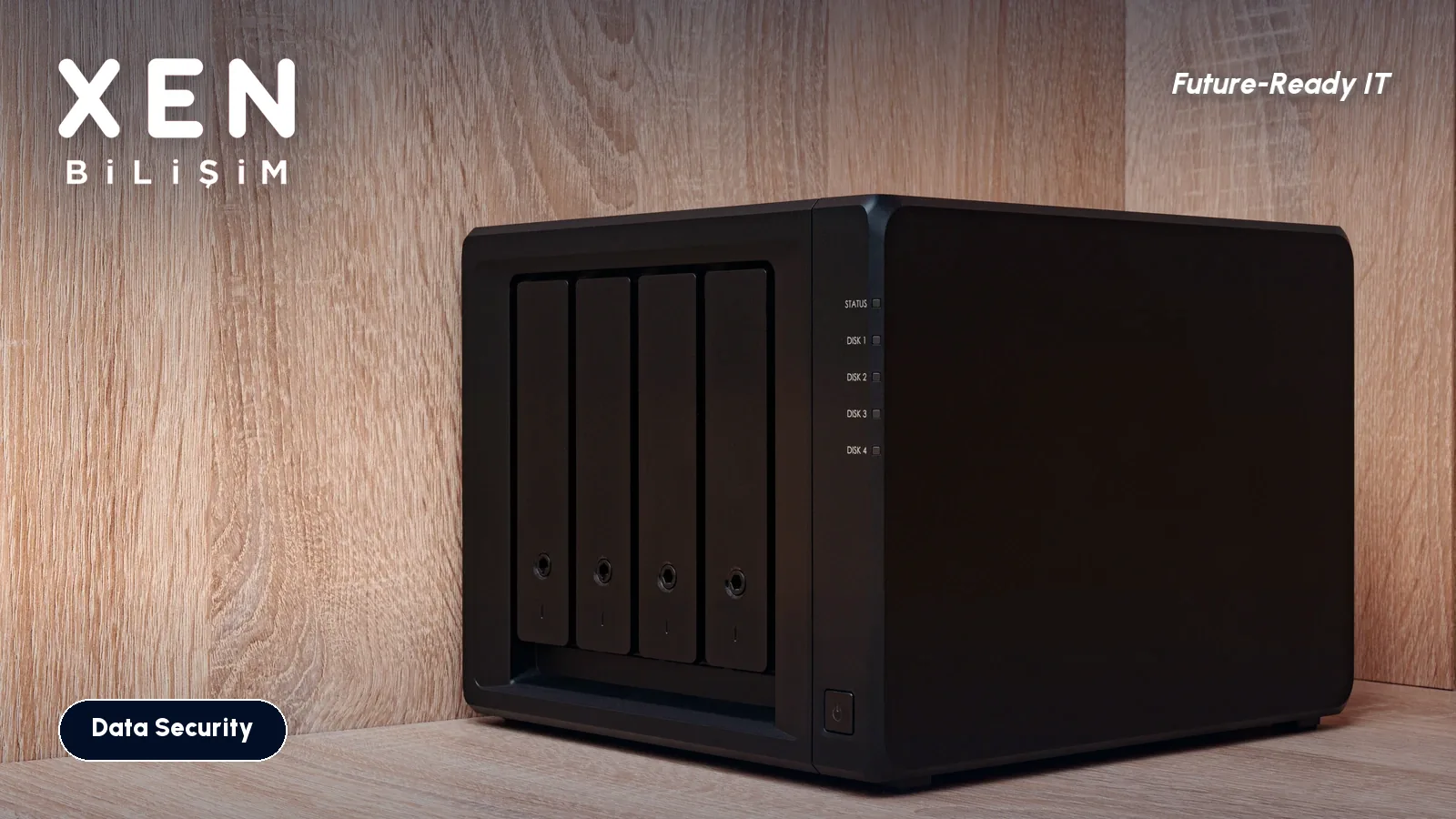
Is the NAS in Your Office Safe From Ransomware? Five Settings to Check
If your backups sit on an office NAS, ransomware can encrypt them too. Why snapshots can be deleted once an admin account falls, how to turn on immutable snapshots, and which five settings matter most.
Read more: Is the NAS in Your Office Safe From Ransomware? Five Settings to Check
A Sign-In Approval at 3 A.M.: How MFA Fatigue Attacks Work
An attacker with your password can bury your phone in approval prompts until someone taps Approve. How MFA fatigue works, why number matching helps, what to switch on, and what to tell your staff to do.
Read more: A Sign-In Approval at 3 A.M.: How MFA Fatigue Attacks Work
Employee Loses a Phone: What Happens to Company Email? First 30 Minutes
What you do in the first half hour after a phone goes missing decides the outcome: kill email sessions, move the second sign-in factor to a new device, and wipe company data only. Here is the order, plus what to set up beforehand.
Read more: Employee Loses a Phone: What Happens to Company Email? First 30 Minutes